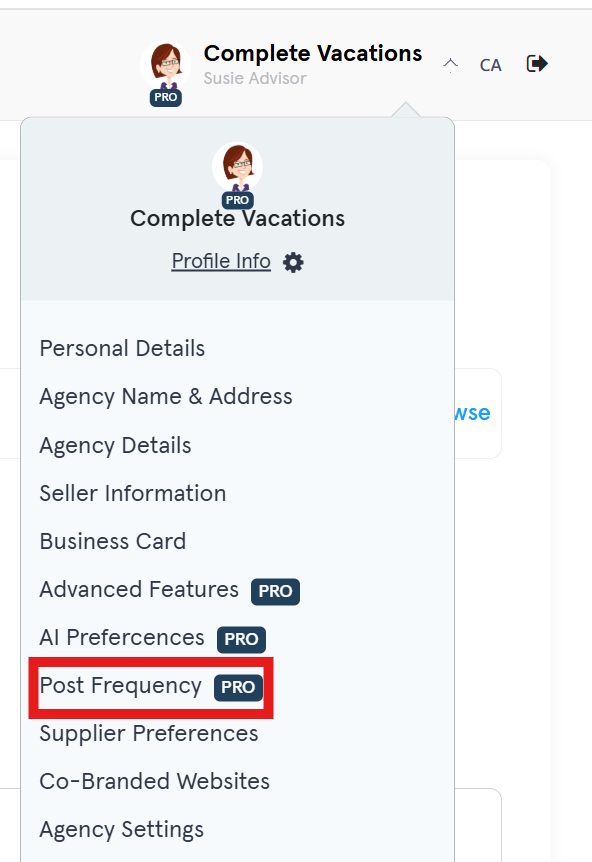
This article will help you take advantage of the features available in BranchUp PRO by updating your profile information and BranchUp Connections.
TABLE OF CONTENTS
- UPDATE AGENCY DETAILS
- REVIEW YOUR BUSINESS CARD
- CONNECT YOUR INSTAGRAM, LINKEDIN, AND ACTIVATE YOUR CLIENT NEWSLETTER
- (OPTIONAL) ADJUST POST FREQUENCY
UPDATE AGENCY DETAILS
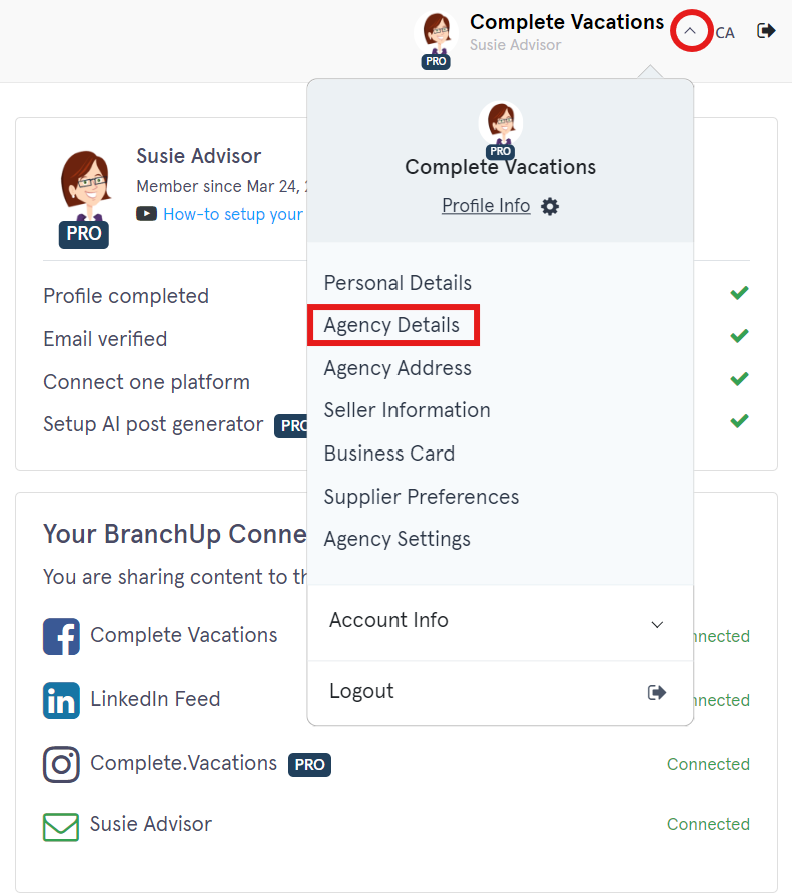
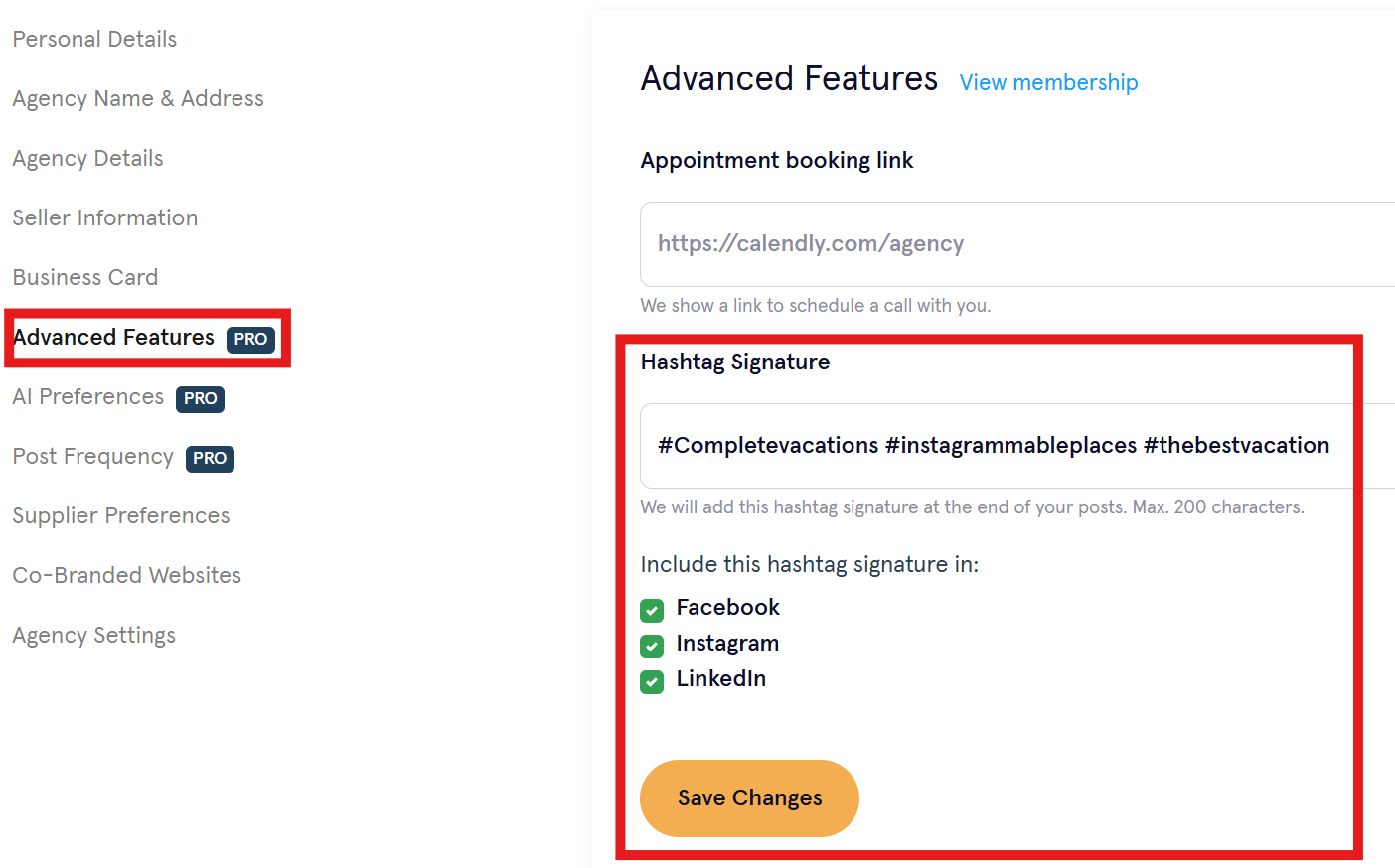
- Go to your 'Profile Info' (gear icon)
- Click 'Agency Details'
ADD YOUR APPOINTMENT BOOKING LINK
If you are using Calendly, Google Calendar or Office365 Appointment Booking calendars, insert the link here. It will be displayed in your BranchUp Marketing for clients to book appointments with you.
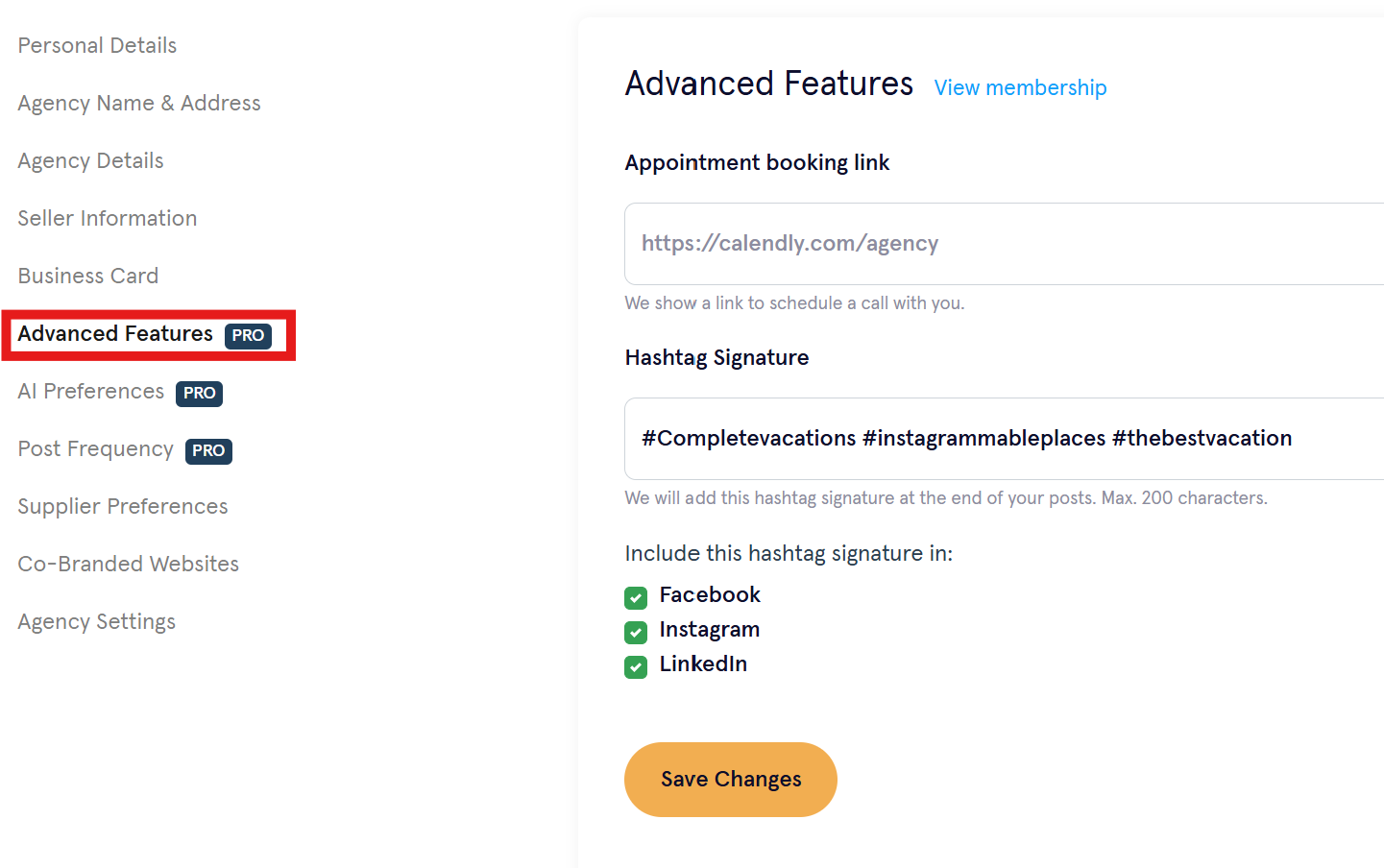
ADD HASHTAGS
Hashtags are a great way to attract new clients who do searches by travel type, destination, or other parameters. For instance #accessibletravel
- Add your hashtag words or phrases
- Check the box for each Social Media platform to include your hashtags
REVIEW YOUR BUSINESS CARD
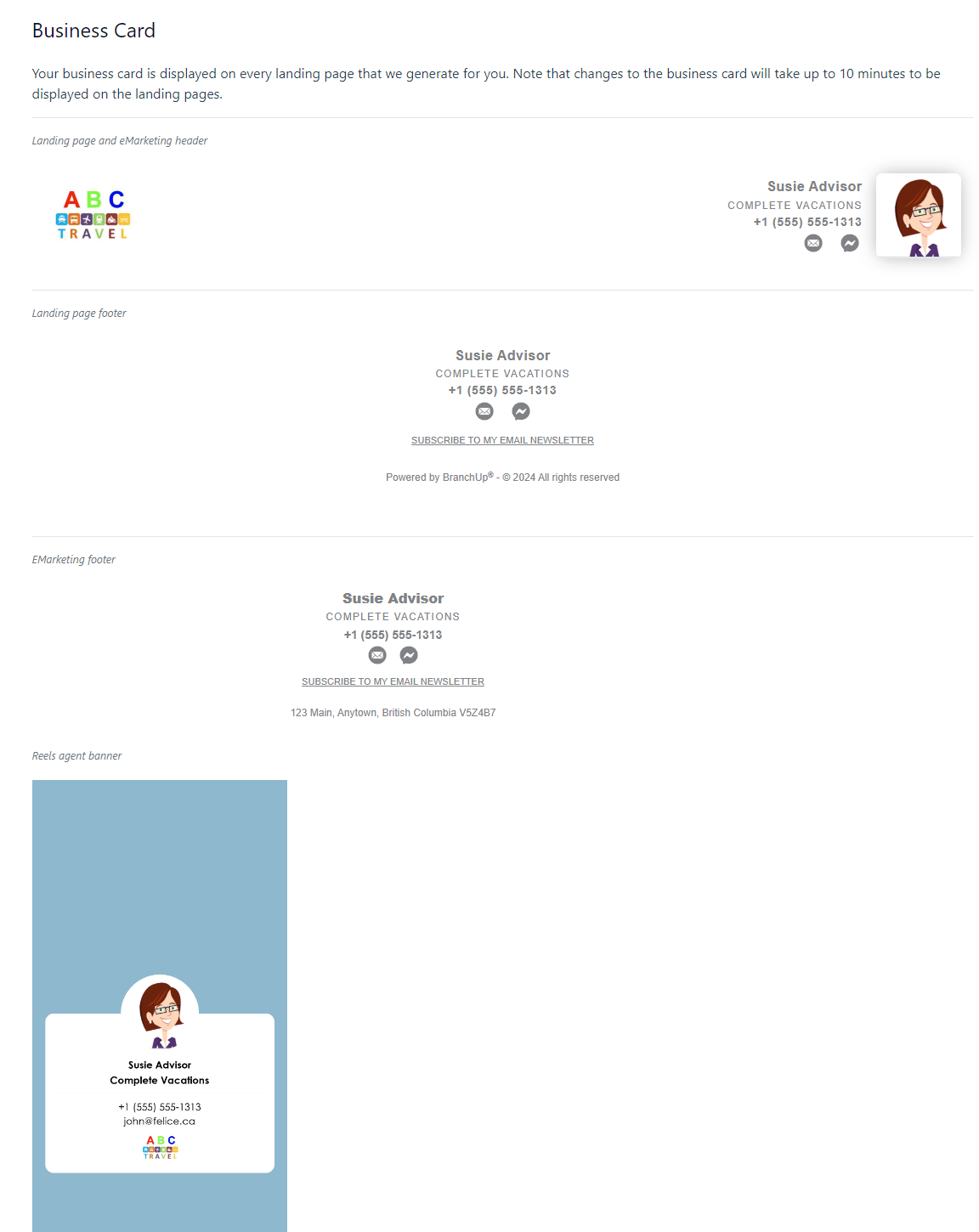
This section shows how your logo and signature appears on landing pages, email marketing, and Reels
Note: This section is view only. To make changes, update the appropriate section of your Profile Settings
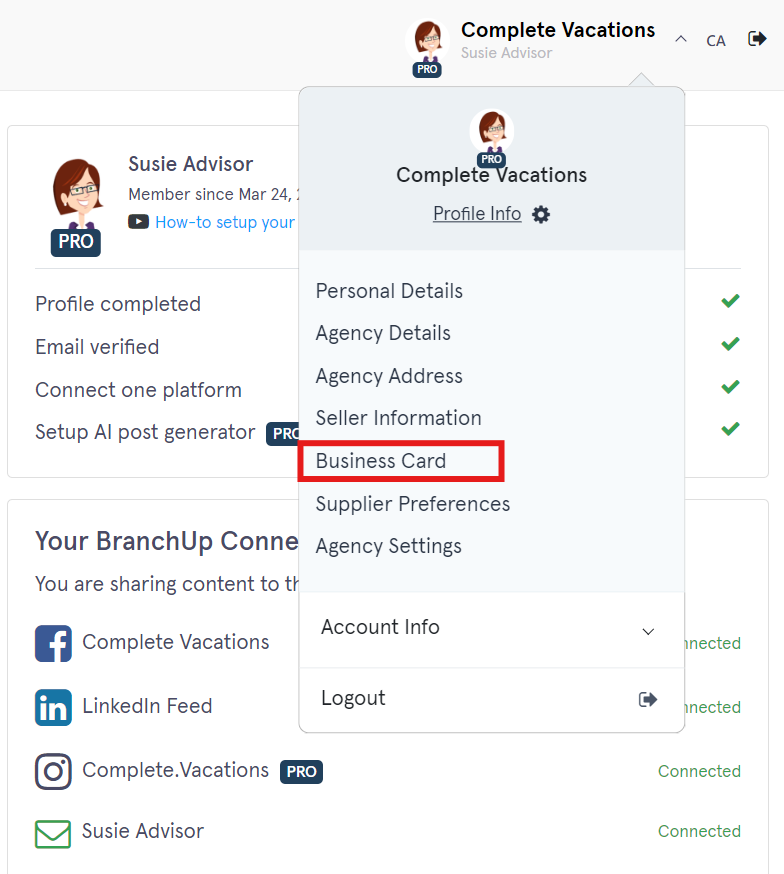
- Expand the drop-down menu next to your profile
- Click 'Business Card'
- Review the accuracy of the information you entered in your profile.
CONNECT YOUR INSTAGRAM, LINKEDIN, AND ACTIVATE YOUR CLIENT NEWSLETTER
- Navigate to 'Your BranchUp Connections' section
- Select 'Connect' to the selected social media
(OPTIONAL) ADJUST POST FREQUENCY
The computer algorithms used by Social Media Platforms determine what individual people see in their feed by showing content that is most meaningful to them.
In fact, this Facebook Posting Tips article from Facebook's support page encourages you to post frequently and that "you don't need to worry about spamming your fans or followers provided that the content you post is new and high-quality." Which of course, BranchUp content is.
If you want to take a deep dive, this article Our Approach to Facebook Feed Ranking explains in more depth how feed ranking works. For a simpler explanation, just watch the video on the page.
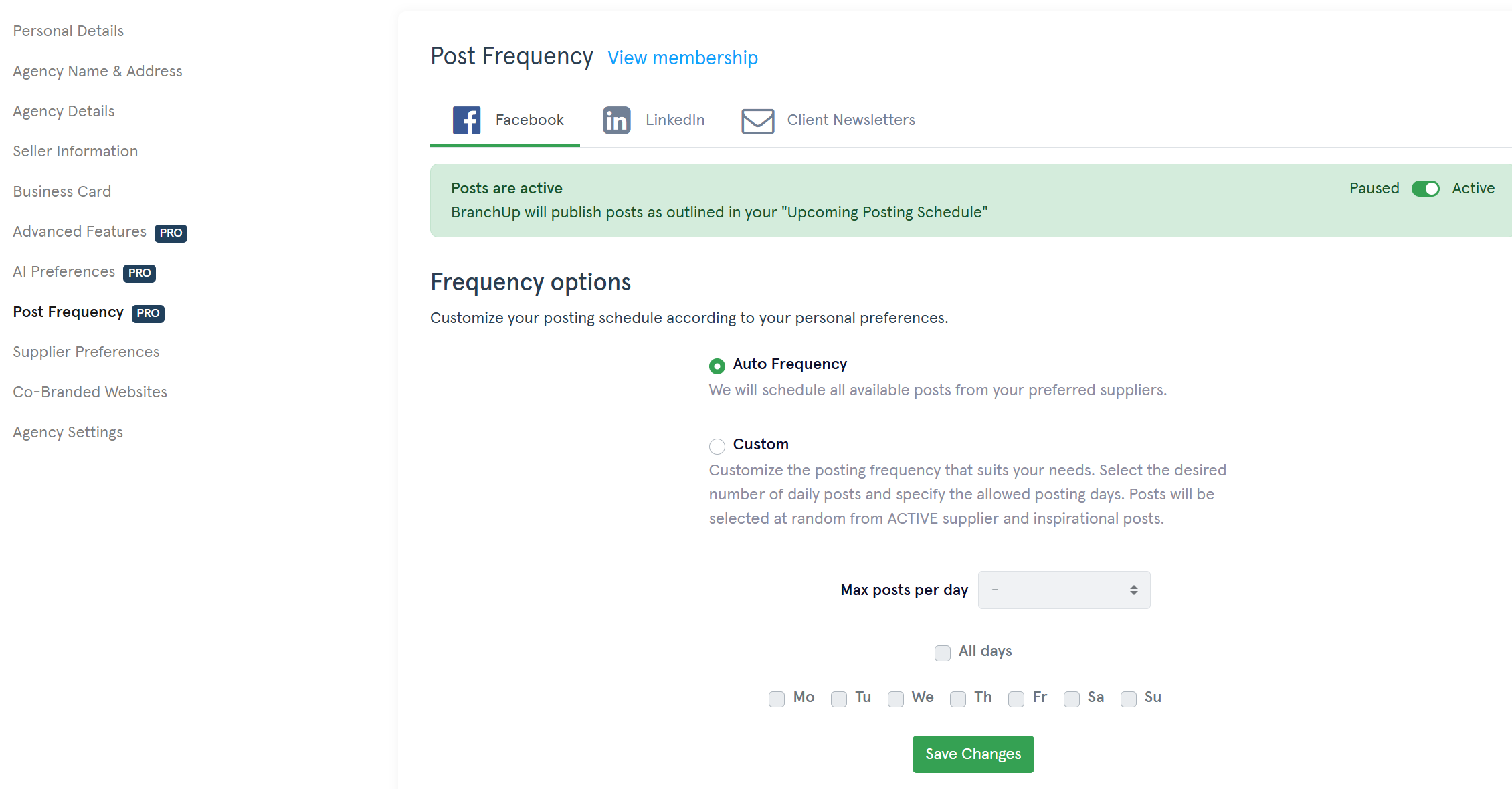
- Click the drop-down menu beside your profile -> click 'Post Frequency'
- Click 'Auto Frequency' to follow the automated BranchUp schedule (Recommended)
- Click 'Custom' to adjust the schedule to your liking